Blackout dates
Blackout dates block new sessions and new bookings on chosen dates. Existing bookings on those dates remain valid.
Managing blackout dates
Open Settings → Scheduling → Blackout Dates.
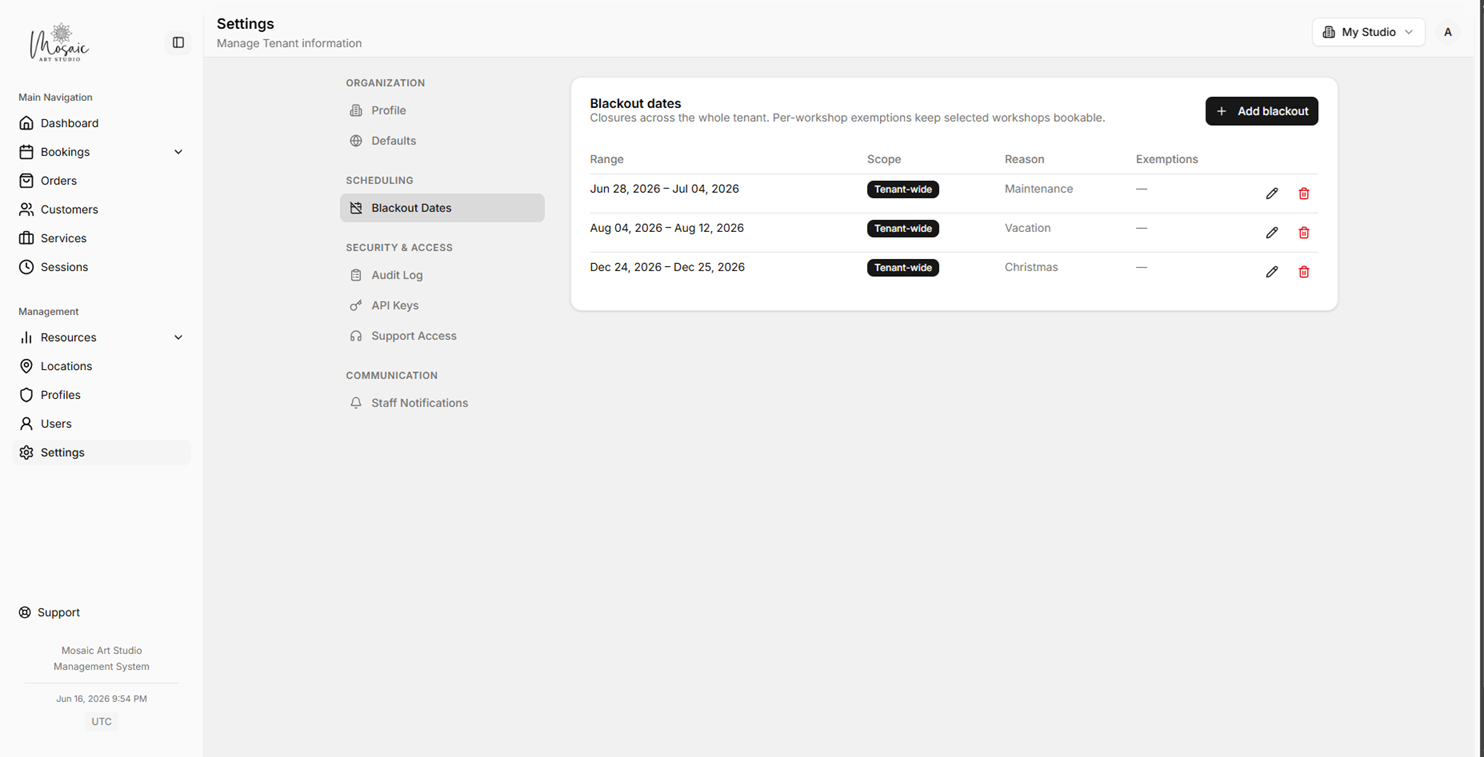
Blackout dates list showing date range, scope, reason, and workshop exemptions.
Tenant-wide — affects every location.
Specific location — affects only that location, managed from the location edit page.
Exempt workshops — listed workshops stay bookable during the closure.
Creating or editing a blackout
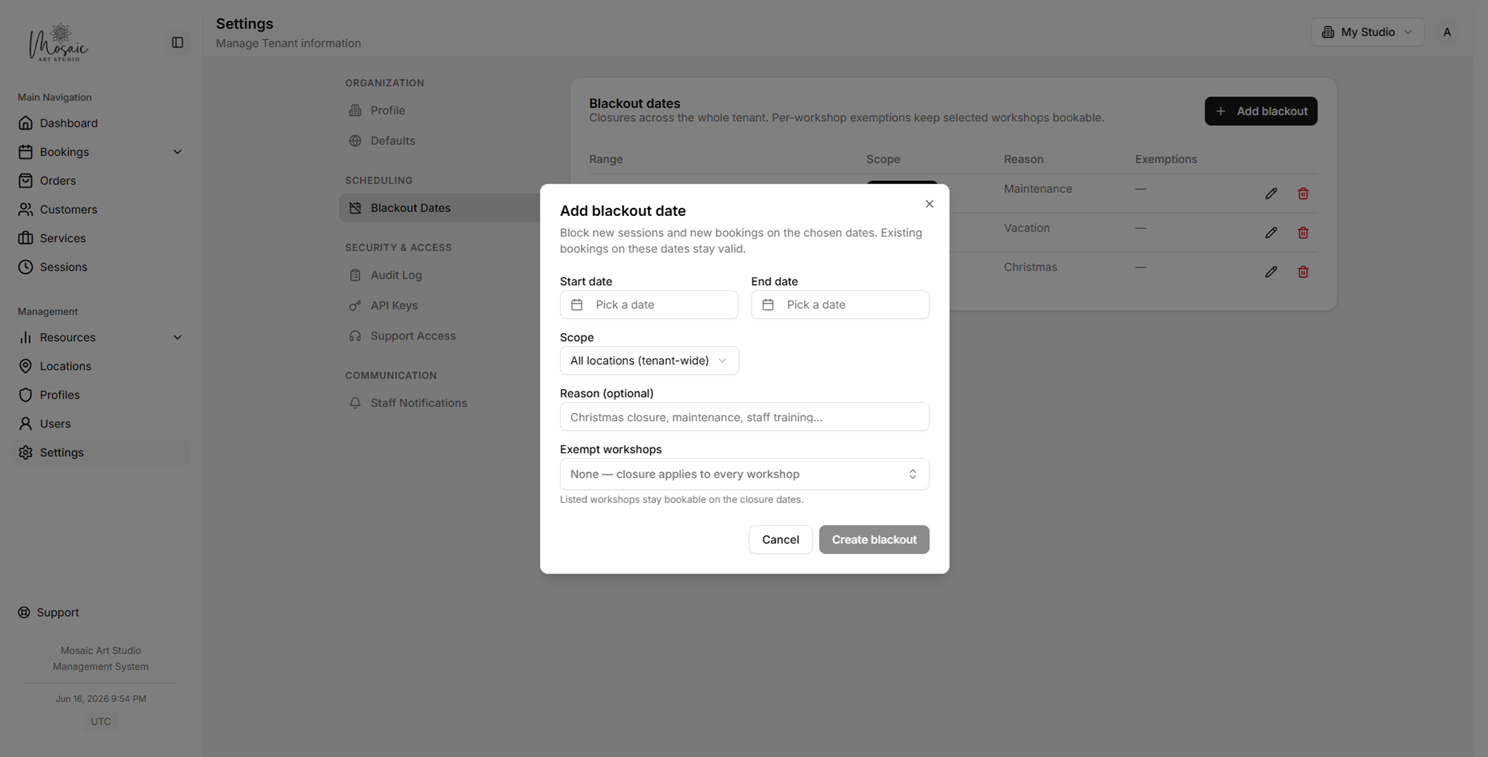
Blackout date creation form with date pickers, scope selection, and workshop exemptions.
Click Add blackout or the pencil icon to edit an existing one.
Pick the start and end date (use the same date for a single-day closure).
Choose the scope: all locations or a specific one.
Optionally add a reason and select workshops to exempt.
Review the impact preview to see affected sessions and bookings.
Save.
Deleting
Click the trash icon and confirm. Deleting re-opens those dates for new sessions and bookings.