Staff guide
Staff members usually work inside a narrower slice of the product than administrators. They often see bookings, customers, calendars, and some read-only service information.
What staff usually see
The sidebar only shows modules allowed by the user profile. If a staff user lands on /, the app usually routes them to the first page they are allowed to access.
Daily booking workflow
Open the bookings list to search, filter, and locate reservations.
Use the calendar for a schedule-based view.
Open a booking to inspect customer, service, session, and status details.
Create or update bookings only if the assigned profile allows it.
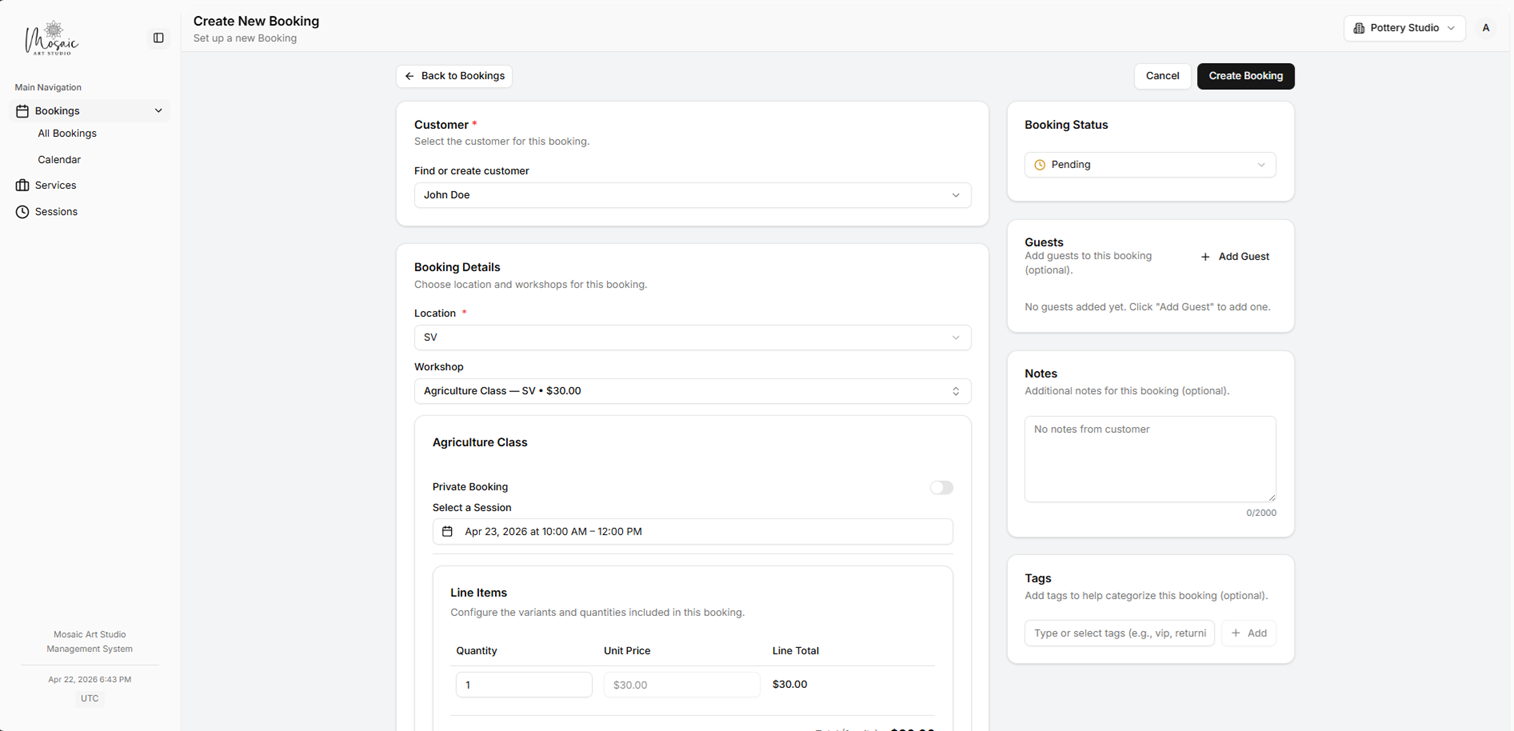
Staff booking creation workflow.
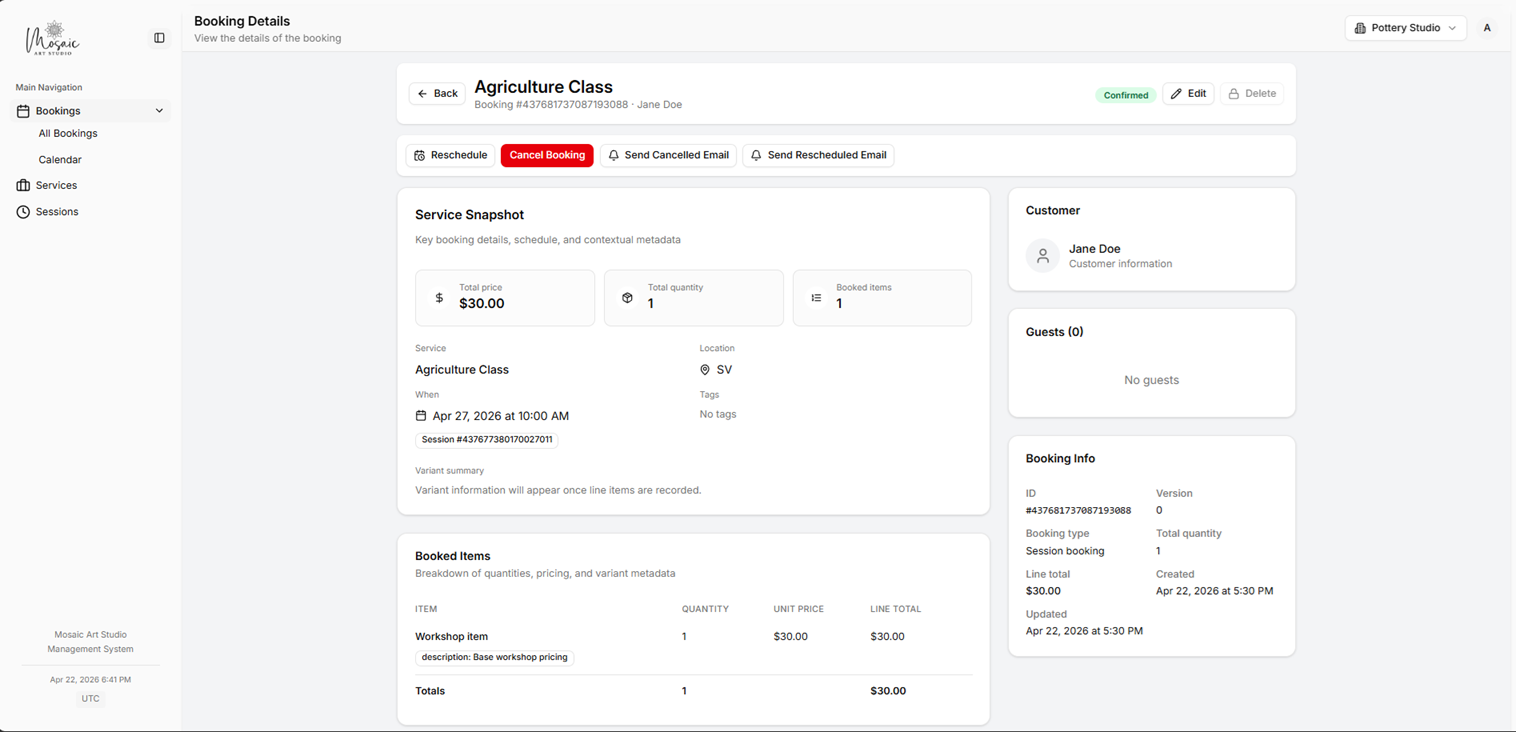
Staff booking details page for updating reservation status and details.
Customers
Staff should search for an existing customer before creating a new record to avoid duplicates.
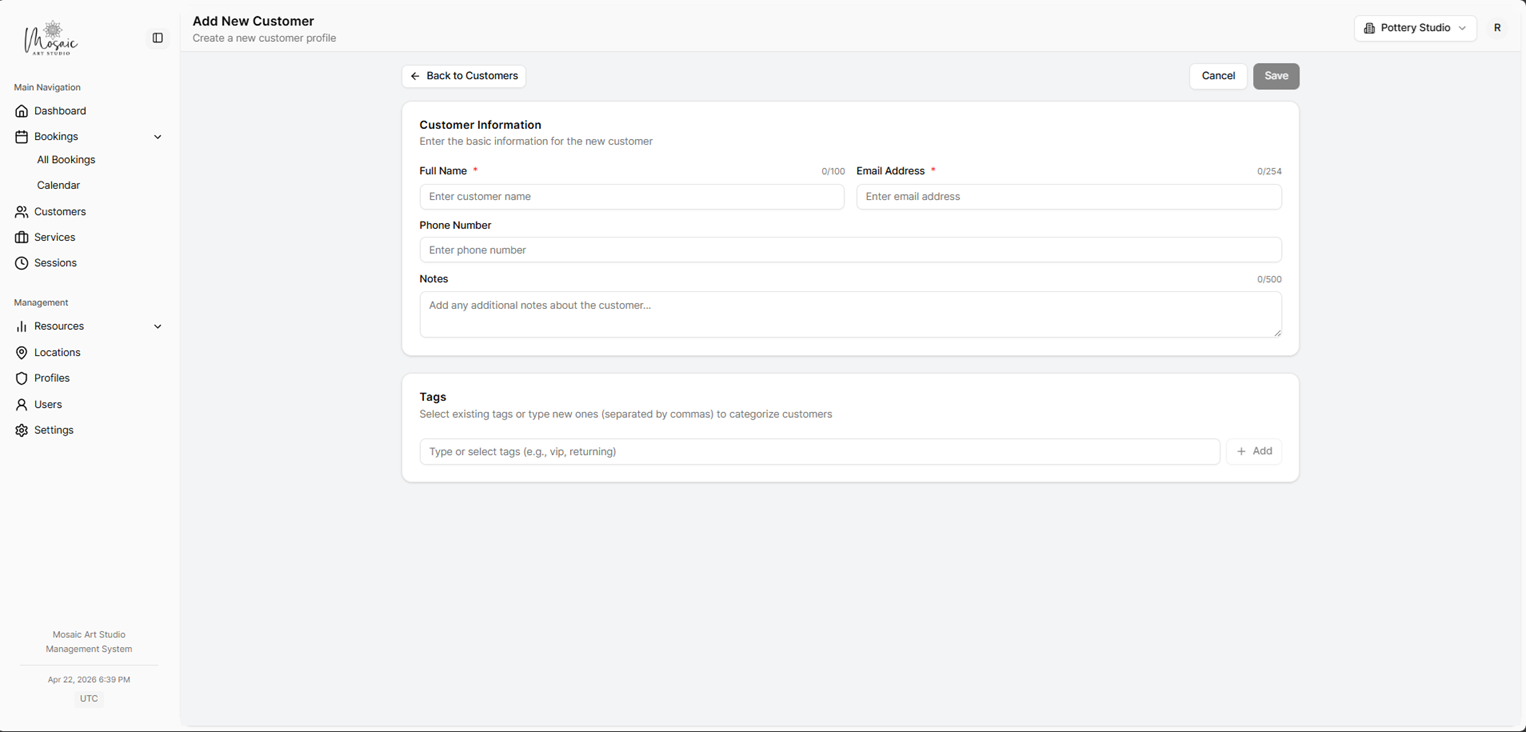
Customer creation form available to staff with create access.
Services and sessions
Staff often view service details to answer customer questions, but configuration changes usually need an administrator.
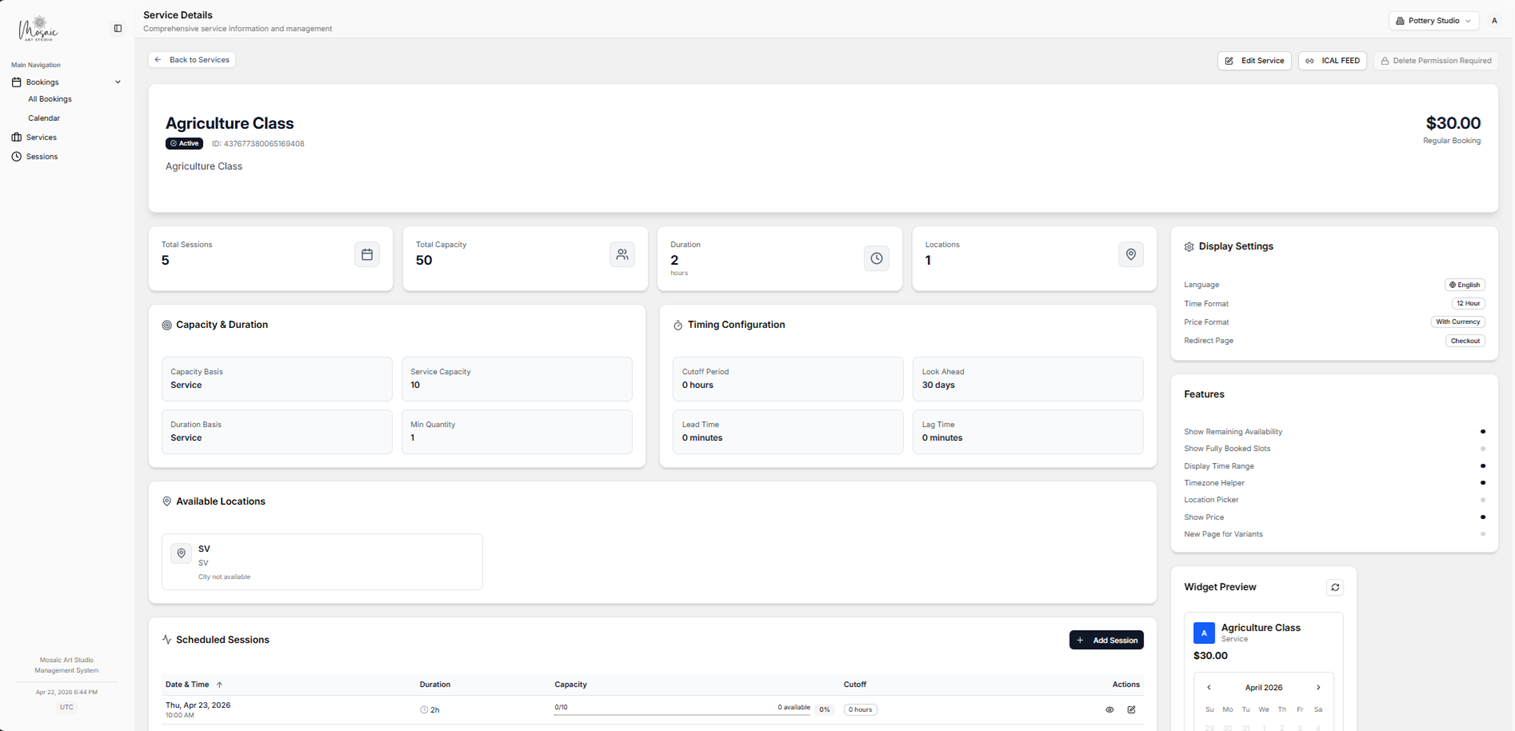
Service details page as viewed by a staff user.